Zigbee from a DIY/Maker Perspective – Low Cost Experiments

My perspective on Zigbee is one of a DIY-er and Maker; I’m primarily interested in making my own devices, rather than doing things with commercial devices. This means, among other things, that I definitely do not want to be reliant on proprietary “hub” software and want to keep control over complexity and cost. What follows are some brief notes on the technology choices which worked for me. The XBee platform looks a bit pricey, especially if the ultimate plan is for multiple DIY devices. This post condenses quite a bit of desk research and experimentation (I didn’t already have a Zigbee network, so started from zero); I hope it provides other people with a “jump start”. I won’t explain basics, so if you don’t already know what “coordinator”, “router”, and “end device” signify in a Zigbee network, look here.

The E18 modules from EByte are available in a number different models and I opted for the quite economical E18 MS1 PCB (this has a PCB antenna, whereas the similarly-priced E18 MS1 IPX has an IPX socket for an external antenna).  Current (July 2023) prices on Aliexpress for E18 MS1 PCB, are: £2.61 or $3.18 + tax. Other options are available with power amplifiers, but for experimenting, the MS1 is just fine and I’ll only pay the extra (and suffer lower battery life) if I find a need. When I say E18 below, I will be particularly referring to the E18 MS1, although the comments may apply to other models.

The basic E18 module is in the form of a surface mount “stamp”, so I made some breakout boards to expose its many GPIOs. I made lots, so am selling on ebay. I’ve written a separate post about these boards, which contains a link to the ebay listing and to a github repository with Eagle CAD files (if you want to get your own boards made).

The big challenge with using the E18 is firmware. The factory firmware is quite specific and limited in what it can achieve, although it takes quite a while to work this out from studying the manual; it is intended for “transparent” data exchange between devices. This is not a good match for the kind of home automation devices which I’m interested in, and which I suppose most DIY/Maker types are. Another issue is that it is impractical for hobbyists to compile source code for the CC2530, the Texas Instruments system-on-chip which is the heart of the E18, because you need the IAR IDE costing several thousand dollars. However: the good news is that someone has produced a configurable firmware generator: PTVO. Another option is to use the Z-Stack “Zigbee Network Processor” (aka ZNP). This also avoids the need to compile for the CC2530 but is nowhere near as easy to use as the PTVO configurable firmware generator, so I will write a separate article on using ZNP.

PTVO Configurable Firmware is extremely helpful in that you set up how the GPIOs should be used as inputs and outputs, including use of multiple I2C sensors and more. It does all this without needing you to use a separate microcontroller; a single E18 (or similar) module interfaced to switches, sensors, indicators, etc is all you need. There are a few things which the free version cannot do, but the “premium” version is not at all expensive. Practical battery-powered end devices will require the premium version for the power saving mode; without this, I have measured PTVO firmware devices consuming over 70mA continuously.

The PTVO tool can also generate the converter JS files needed by Zigbee2MQTT (see below), which is very helpful indeed, since the documentation on writing these youreself is rather sketchy. While these converter files seem to mostly work “out of the box”, the one generated for a basic switch is not compatible with the firmware which is generated. I raised an issue on github but the developer didn’t seem to consider incompatible output to be a bug. One limitation of the PTVO firmware is that you can only use the devices which it supports and in the way it supports them (e.g. you cannot control over-sampling and other noise-reduction techniques). If these are issues then a resort to ZNP and a MCU with your own code to interface with the sensor/display/actuator is the easiest way ahead.

In addition to the E18s, which will be the heart of my Zigbee devices, I also obtained:

  • The Ebyte E18 USB dongle (CC2531 chip), model E18-2G4U04B, for use as a Zigbee message sniffer. The pre-installed firmware works with the Texas Instruments Sniffer software (version 1, not version 2!) but this is not much use as it cannot decrypt encrypted messages. So: I installed the ZBOSS sniffer firmware and use the ZBOSS extension for Wireshark (see setup notes on Zigbee2MQTT site). This works mostly nicely and is quite informative. You DO need to select the right networking channel (the default in Zigbee2MQTT is 11, but I changed to 19 to reduce WiFi interferrence). Note that this hardware is not well suited to running the Zigbee 3 coordinator firmware or supporting many devices, and is quite low power (specifics are documented on the Zigbee2MQTT site).
  • A bundle comprising another CC2531 USB dongle (but this one with an external antenna, and intended to be the network coordinator), a CCDebugger and associated connection cables AND an adapter PCB with 0.1″ and 0.05″ headers. There are plenty of these on ebay, Aliexpress, and Amazon. I installed the Z-Stack 1.2 HA coordinator firmware on this dongle using the CCDebugger and TI Flashing software (this is where the 0.1″ to 0.05″ adapter board and cables come in). I also found that the Ebyte dongle had a single row of 0.05″ spacing holes for programming and was able to slide these over 5 of the 10 pins on the adapter board and then make ad-hoc connections to the programmer. This worked first time, and is much cleaner than solding “Du Pont” cables as suggested on the web.

On the question of programmers: I think the CCDebugger is the easiest way and, when bundled with the adapter and dongle is a “no brainer” purchase if you’re getting set up from scratch. I have also used other options with a Raspberry Pi, Flash-CC2530 (see my other post), and if you conduct a web-search for “CCLoader” + “ESP8266” or “Arduino”, you will easily find ways of using those MCU platforms as programmers. Some of these are for the CC254x devices, but the communication protocol is the same. Use “.hex” (Intel Hex) files with TI SmartRF Flash Programmer and “.bin” files with the other options. If you need to create bin from hex files, try using hex2bin (noting that you may need to use padding pad). The CCDebugger and Flash-CC2530 also show you the chip id, which can be helpful to find out whether there is a CC2530 or CC2531 inside (or not). Chip Id helped discover that multiple BLE modules I bought had mis-labelled chips as well as incorrect firmware: total fakes! Whatever you use for programming, only the DD, DC, and Reset signals are needed (in addition to Gnd and supply). If you use the CCDebugger, note that it provides a 3.3V power supply but also has a Vsens (read the manual!). I tend to program “out of circuit”, using the CCDebugger’s power supply and simply connect Vsens to the debugger’s power supply.

Now to the important question of the coordinator, and the bridge between planet-Zigbee and the rest of the universe. Zigbee2MQTT is freely available and non-proprietary and has some nice features:

  • It provides a bridge to a MQTT broker. This is a smart move for integration of different sense-and-control technologies. In my case, I already have a MQTT broker running as part of my Open Energy Monitor (inside it has a Raspberry Pi3) and I have co-opted the broker to be a hub for several air quality and temp+humidity sensors around my house and garden based around the ESP8266 Wifi MCU. There are numerous PC and Android (and doubtless Apple) Apps which can subscribe and publish to MQTT and I’ve written several Python dashboards using Plotly Dash and the Paho MQTT package. Using MQTT allows you to integrate Zigbee and non-Zigbee “worlds”, although the interactions will not be as rapid as a pure Zigbee system. If you know nothing about MQTT: find out!
  • It can run on a Raspberry Pi v3 or v4 (but not my old v1). I run it in a RPi v3 with its WiFi turned off, and have not had to resort to a USB extension cable for the coordinator dongle (some people recommend such an extension to avoid radio frequency interferrence).
  • It has a nice web interface which can be used to monitor the Zigbee network, inspect device status, control devices, and “bind” devices together.
  • Kantor Koen (the brains behind Zigbee2MQTT) provides firmware for the coordinator.
  • Mostly good documentation, although I could not get it to install on Windows 11 by following the instructions and the documentation on writing converter JS files is not adequate (not that this is a problem when the PTVO JS files work).

The question of radio frequency interferrence is referred to on the Zigbee2MQTT website, forums, and elsewhere but much of the information is unhelpfully inaccurate due to omission of caveats. The core issue is that WiFi and Zigbee share the same frequency band. I have widely seen that the assertion that there are only three non-overlapping WiFi channels: 1, 6, and 11. The central neglected caveat is that in the USA, unlicenced use is limited to channels 1-11. Much of the rest of the world can use channels 12 and 13. So, while 1, 6, and 11 are the sensible choice for optimal separation in the USA, there are actually 4 non-overlapping channels elsewhere: 1, 5, 9, 13 (a separation of 4 channels is quite adqeuate). This gives scope for operating 3 WiFi channels AND having uncontested space for a Zigbee network. NXP also has an application note (pdf) which shows the results of experiments on WiFi/Zigbee interference which suggests that concerns about wide “sideband” noise are not really warranted if you are using “802.11n” WiFi.

Summary

Ebyte E18 USB (CC2531) dongle and ZBOSS for a Zigbee sniffer.

Another CC2531 USB dongle with an antenna running Z-Stack 1.2 HA coordinator firmware attached to a Raspberry Pi v3. This is a bit low powered for serious use, but is fine for experimenting, prototyping, and small-scale use; I’ll upgrade if needed.

E18 modules on my breakout PCB runing PTVO firmware as “terminal” devices.

[optionally also E18 modules with PTVO “router” firmware, although I might end up using yet more USB CC2531 dongles as routers on the grounds that they are easy to power]

Zigbee2MQTT running on a Raspberry Pi v3 (in my case I used the MQTT broker on my Open Energy Monitor, rather than running on the same Pi).

For monitoring and publishing MQTT while experimenting I tend to use MQTT Explorer on my Windows PC. There are several Android apps which can do plotting, dashboards, and control widgets; some are better than others, depending on what you want…


TP-Link TD-W9970 “Error code:1 Internal error” – Solved

When trying to change WiFi settings on my TP-Link TD-W9970 v4 I got “Error code:1 Internal error” (and one button saying “OK”; it is not OK!). The TP-Link forms indicate I am not the first, but the TP-Link support people haven’t given any useful advice. Taking a backup of settings, resetting, and restoring the settings DID NOT fix things… just a waste of time.

Eventually, I stumbled upon the solution: I enabled the “Guest Network”.

Then I could change WiFi settings, especially the way the default “auto” settings are for a 40MHz bandwidth on an auto-selected WiFi channel (which is not helpful for managing multiple access points and a Zigbee network). The Guest Network can be turned off again afterwards.

Hooray!

Breakout Board for E18 Modules – DIY Zigbee at a Fraction of the Cost of an XBee

Having recently wanted to get my hands dirty with DIY Zigbee – see my other post on low cost DIY Zigbee – I couldn’t find any suitable breakout boards so, after having found the CC2530-based Ebyte E18-MS1 modules (which are rather economical and available from the manufacturer on Aliexpress… and seemingly without the curse of a glut of clones and fakes), I decided to make my own.

I wanted something quite simple but also flexible, with maximal scope for experimenting and learning. The main use case is to plug into breadboard but there was enough PCB space for some “convenience” components: two switches and three LEDs and associated resistors.

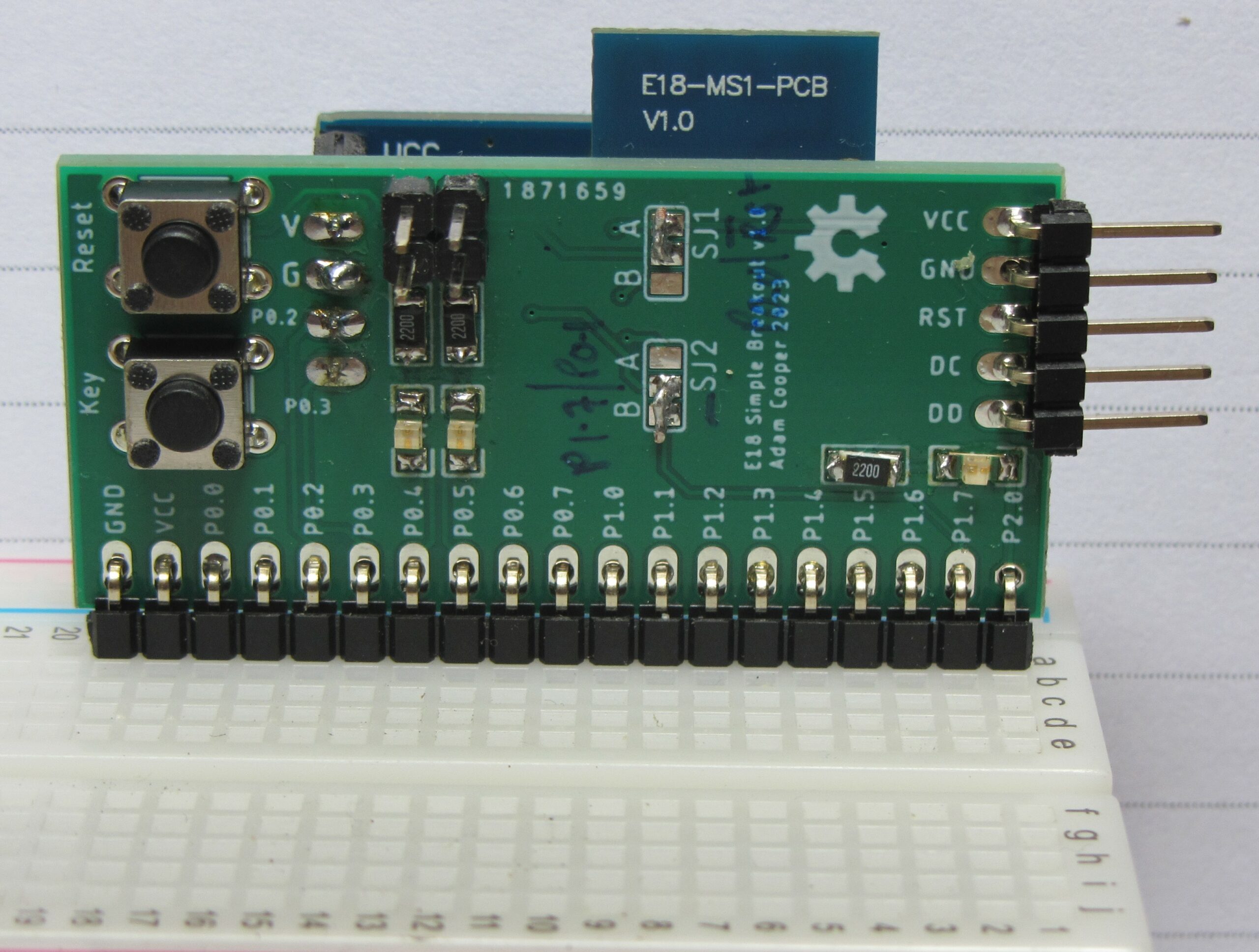
This is what it looked like once assembled (you can just see a BH1750 I2C light sensor on the rear):

Some notes on motivation, layout pragmatics, and options:

  • The long header is meant to be populated with right-angle pins. This will put the antenna nicely up and leaves plenty of space for other components on the breadboard (I find the breakouts with very wide dual-in-line pin-outs to be rather irritating, and Arduino style sockets and flying leads are not great when more than a few connections are to be made).
  • The 5 pin header is for firmware flashing. I opted for this, rather than the full 10 pin “debug” header which CCDebugger uses, for econonmy of space. These 5 pins are quite sufficient for using CCDebugger with TI SmartRF Flash Programmer (I made a little adapter) or if using something like Flash CC2531, which works fine for CC2530’s, (or my patched version for use with Pi v1 GPIOs).
  • The 4 pin header may be convenient for either UART or I2C connections. I’m expecting to be using PTVO and for the CC2530 it fixes UART pins to be P0.2 and P0.3. This header is meant to be mounted on the same side as the E18 module (opposite to switches).
    • The switches should be configured using the solder jumpers.
    • SJ1 handles the “Reset” button: A connects to E18 Reset; B connects to P0.0.
    • SJ2 handles the “Key” button: A connects to P0.1; B connects to P1.7 (which is used by the E18 factory firmware).
    • The on-board LEDs (and the enabling jumpers) visually correlate with the pins they are connected to: P0.4, P0.5, and P2.0.

Eagle design files are available on github but I am also currently (July 2023) selling surplus PCBs on ebay.

Connecting a Raspberry Pi (etc) Direct to a PC with a USB-LAN Adapter

There are a number of articles on the web which describe how to connect a Raspberry Pi direct to a Windows PC with a USB to LAN adapter. This can be quite handy when tinkering, especially with an original version 1. This article is quite good but I struggled to make it work. This article explains the problem and solution… but read that article first, as I don’t explain a few things!

The root of the problem is that I was using a USB to LAN adapter. It appears that Windows (Windows 11 at least) does not trust these devices because the network is fixed as being “Public”; I could not find a way to change this. The second part of my initial downfall was that when TFTPD64* started up, and Windows Firewall popped up the “public or private network” challenge, I thought nothing of allowing it to proceed with “private”. Thus, the firewall is between my USB-LAN dongle and the DHCP server.

* – an alternative is OpenDHCPServer.

If, like me, you missed the chance to choose “public” when starting the DHCP server software, you need to find your way into Windows “Settings”, then “Privacy & Security > Windows Security > Firewall & network Protection > Allow an app through firewall” (take a breath)… click the “Change settings” button then scroll down the list and enable the entry for tftpd64 or opendhcpserver for “public”.

Oh: one thing which the article above was not clear on was to use a different subnet ip address for the USB-LAN dongle than the PC is on. e.g. if your PC is 192.168.1.4, don’t use any 192.168.1.* address for the static IP entry.

And What About Internet Connection?

While the procedure in the above-mentioned article is fine for accessing the Pi from your PC, as soon as you need to access the internet from the Pi, it is aparrent that you can’t! Network interactions time out because there is no route for network traffic from the dongle adapter to the PC’s LAN/WiFi.

This is easily solved using “Sharing”. First thing: shut the Pi down. Starting with your PC’s “real” network adapter, right-click > Properties > Sharing (tab) > select the top “Allow” and choose the dongle for “Home networking connection”.

This will change the dongle’s IP addres so a return to TFTPD64 will be required to change settings, after which the Pi can be powered on again to get its new IP address. Changed settings I used:

  • IP pool start address = 192.168.137.100
  • Def router (Opt3) = 192.168.137.1

Watching the TFTPD64 log I noticed that it allocates two IP addresses. I suspect the first one (it had MAC address 00:AB:00:00:00:00, which is not normal!) is part of WIndows’ sharing magic. The other one should have your usual (and of course remembered!) Pi’s MAC. For me this was 192.168.137.101


Debugging ESP8266 with GDB and VSCode + Platformio

VSCode with the Platformio IDE plugin makes for an excellent platform for developing ESP8266 code, especially using the Arduino Framework for ESP8266 but the Platformio debugging features do not work. It is, however, possible to use GDB together with VSCode and Plaformio to be able to single-step through code, inspecting flow of control and variable values as you go, in an experience that is comparable to VisualGDB but costs nothing.

There are some limitations, “gotchas”, etc, but once these are understood it really does work!

Setting Up Debug Compilation

The program must be compiled differently for debugging to work because additional information must be included, along with the GDBStub (see below). Once debugging is over, however, the firmware uploaded to the ESP8266 should not have this overhead.

Allowing for both options to be compiled and uploaded is easy in Platformio if you use platformio.ini environments. For example:

[env]
platform = espressif8266
framework = arduino
upload_port = COM15
upload_speed = 115200
monitor_port = ${env.upload_port}
monitor_speed = ${env.upload_speed}

[env:d1_mini_pro]
board = d1_mini_pro

[env:debug_d1_mini_pro]
board = d1_mini_pro
build_flags = -Og -ggdb3 -g3 -D WITH_GDB
Note that I have created two targets – “d1_mini_pro” and “debug_d1_mini_pro” – with the latter defining some non-default build_flags. The “-g” flags make the compiler include debug information, while -Og prevents the compiler optimising code (which breaks the nice relationship between lines of source code and compiled MCU code). I have also included “-D WITH_GDB”; the -D directive is equivalent to a “#define” in the source code and means we can use “#ifdef” to selectively include chunks of code depending on whether we’re using the debug_d1_mini_pro target or not.
Remember to recompile and upload before debugging any changes you make.

Adding GDBStub to Your Code

The GDBStub is code which executes on the ESP8266 to communicate with GDB running on your PC via the serial port. Serial.print() will still work so long as you avoid using a rapidly-repeating loop() which contains little more then Serial.print().

The Arduino Framework already contains the GDBStub code and their documentation explains the basics, although in the context of using the Arduino IDE.

Following on from the use of “WITH_GDB” in the previous section, add the following chunks of code.

At the top:

#ifdef WITH_GDB
#include <GDBStub.h>
#endif
At the start of setup():
  Serial.begin(115200);  // or whatever baud rate you prefer
  #ifdef WITH_GDB
  gdbstub_init();
  #endif

Command Line GDB

An essential truth is that you must use the correct gdb for the core processor of the ESP8266: xtensa-lx106-elf-gdb.exe. For my Platformio install, this can be found at (“~” denotes my home directory, i.e. C:\Users\Adam): ~/.platformio/packages/toolchain-xtensa/bin/xtensa-lx106-elf-gdb.exe

A second essential truth is that GDB needs to be set up correctly before you can actually debug. This is most easily done with a set of commands stored in a file, which I call “gdbcmds” and which should be created in the home folder of the Platformio project (i.e. in the same folder as platformio.ini). My gdbcmds file contains:

# ESP8266 HW limits the number of breakpoints/watchpoints
set remote hardware-breakpoint-limit 1
set remote hardware-watchpoint-limit 1
# Some GDBstub settings
set remote interrupt-on-connect on
set remote kill-packet off
set remote symbol-lookup-packet off
set remote verbose-resume-packet off
# The memory map, so GDB knows where it can install SW breakpoints
mem 0x20000000 0x3fefffff ro cache
mem 0x3ff00000 0x3fffffff rw
mem 0x40000000 0x400fffff ro cache
mem 0x40100000 0x4013ffff rw cache
mem 0x40140000 0x5fffffff ro cache
mem 0x60000000 0x60001fff rw
# Locate the ELF file
file .pio/build/debug_d1_mini_pro/firmware.elf
# Change the following to your serial port and baud
set serial baud 115200
target remote \\.\COM15

The ELF file location follows the pattern .pio/build/{target}/firmware.elf, where “{target}” matches the relevant entry in platformio.ini.

Obviously: change the serial port and baud rate!

Now open a new terminal in VSCode. It should open with the project home as the working directory (this is necessary). You can open a terminal window outside VSCode too (I like ConEMU) but should make sure the working directory is right.

You need to run xtensa-lx106-elf-gdb.exe, passing the commands file by adding “-x gdbcmds”. I tend to use a bash shell, so the command is:

~/.platformio/packages/toolchain-xtensa/bin/xtensa-lx106-elf-gdb.exe -x gdbcmds

If you prefer a normal Windows command prompt just replace the “~” with C:\Users\You.

If you get an error like “\\.\COM15: No such file or directory.” then you will have the Serial port open somewhere such as the “Monitor”. Close it.

I suggest you read the Arduino Framework notes for “what next”. The GDB documentation is available online but is rather long and has much which is not applicable. Generally useful commands are: thb (see below), next, step, finish, print, and info locals. Interesting to explore are: disassemble and frame.

When single-stepping (step or next), the execution will sometimes step over several lines of code.

Avoid resetting the device while a GDB session is connected; it gets rather confused!

ESP8266 Limitation – One Breakpoint

This causes things to get ugly if you don’t work with care. The first thing to do is to use temporary breakpoints. Rather than the normal “break” GDB command, use “thb”. This means that once the breakpoint has been reached it is deleted. Otherwise you need to use the “delete” command to remove the breakpoint.

Typical uses are to break on entry to a function. So long as the function name is unique, something like “thb loop” works. Since the compiled code contains source from many files, line numbers must identify the file they relate to, so the command should be something like “thb src/main.cpp:25”.

“Visual” Debugging

This is how to get the debugging experience more like what the Platformio and VisualGDB screenshots suggest.

The launch.json file (within the .vscode folder for the Platformio project) should be edited. Ignore the warning about this being an automatically-generated file and replace the platformio debug entries with the following:

{
    "version": "0.2.0",
    "configurations": [
        {
            "name": "GDB",
            "type": "cppdbg",
            "request": "launch",
            "program": "${workspaceFolder}/.pio/build/debug_d1_mini_pro/firmware.elf",
            "args": [],
            "stopAtEntry": false,
            "hardwareBreakpoints": {"require": true, "limit": 1},
            "cwd": "${workspaceFolder}",
            "environment": [],
            "externalConsole": true,
            "MIMode": "gdb",
            "miDebuggerPath": "${userHome}/.platformio/packages/toolchain-xtensa/bin/xtensa-lx106-elf-gdb.exe",
            "miDebuggerServerAddress": "\\\\.\\COM15",
            "setupCommands": [
                {"text": "set remote hardware-breakpoint-limit 1"},
                {"text": "set remote hardware-watchpoint-limit 1"},
                {"text": "set remote interrupt-on-connect on"},
                {"text": "set remote kill-packet off"},
                {"text": "set remote symbol-lookup-packet off"},
                {"text": "set remote verbose-resume-packet off"},
                {"text": "mem 0x20000000 0x3fefffff ro cache"},
                {"text": "mem 0x3ff00000 0x3fffffff rw"},
                {"text": "mem 0x40000000 0x400fffff ro cache"},
                {"text": "mem 0x40100000 0x4013ffff rw cache"},
                {"text": "mem 0x40140000 0x5fffffff ro cache"},
                {"text": "mem 0x60000000 0x60001fff rw"},
                {"text": "set serial baud 115200"}
            ]
        }
    ]
}

Note that: the entry for “program” will need changing to match your debug compilation target; the serial port appears as “miDebuggerServerAddress” and has additional back-slashes compared to the previous configuration.

This uses the “machine interface” to GDB, which you can see by adding “–interface=mi” after the “-x gdbcmds”. There is a Python package which can interpret the gdb/mi responses: pygdbmi.

You should now be able to use the “Run and Debug” feature of VSCode; there should be an entry called “GDB” (using the “Quick Access” Plaformio Debug > Start Debugging also seems to work but I avoid that route as I don’t know what else it might do). I won’t repeat information on using the VSCode debugging interface here; there is plenty on the web! You should be able to see variables and to inspect the call stack while stepping through the code. What I will provide are some caveats and gotcha-avoidance measures.

Remember there is only one breakpoint

Unfortunately, VSCode does not let you set temporary breakpoints. So you must adopt a working practice of setting a breakpoint and then deleting it as soon as you get there (the config line ‘”hardwareBreakpoints”: {“require”: true, “limit”: 1}’  prevents you from adding more than one, but it isn’t that simple! It appears that the VSCode gdb/mi implementation uses breakpoints for “step over” operations, so you really must delete the breakpoint before stepping. If you get horrible red boxes popping up reporting exceptions etc, the cause is likely to be because you have left a breakpoint.

Where is my Serial.print() output?

In spite of the debugger, I still find Serial.print() very useful for reporting sensor readings etc.

These appear in the Debug Console.

Not all variables are locals

Although the VARIABLES panel shows local variables (and changes these as you select different levels in the call stack), global variables will need you to issue the GDB print command. Locate the Debug Console and note that it has a command entry line at the bottom. GDB commands may be entered here, but must be prefixed by “-exec” (e.g. -exec print foo). You can also add these as WATCH entries.

Adding a breakpoint while things are running

Adding a breakpoint while the ESP8266 is running causes it to stop execution where it is, rather than where the breakpoint has been added. Simply use Continue (F5) to make it continue until the breakpoint is met.

Some things don’t work

Although VSCode suggests otherwise, some things are not supported: PERIPHERALS, MEMORY, DISASSEMBLY.

The Debug Console command line entry comes to the rescue, e.g. try “-exec disassemble”.

Debugging Inside Setup

The problem with attempting to debug inside setup() is that the ESP8266 will normally have exited setup() before you connect GDB.

The neatest way of handling this is to add the following code into setup() just before you want to start debugging:

  #ifdef WITH_GDB
  gdb_do_break();
  #endif

When you reset the ESP8266, this triggers entry into the debugger on the ESP8266, which looks like a breakpoint hit, and means that when you connect GDB you find you are stopped inside gdb_do_break(). Send the “finish” command to GDB twice and you’ll be inside setup().

This works nicely with the command line use of GDB but I haven’t been able to find how to make the VSCode debugger play nicely with it. In this case, the quickest option is to use something like delay(3000) instead of gdb_do_break(). This gives you enough time to start the debugger after resetting the device.

Make sure you quit any GDB session before resetting; things get all messed up otherwise.

Setting Variables

GDB permits variable setting through commands such as “set var my_var = 5”.

Unfortunately, this does not always work. Various comments on the web suggest this comes down to where the variable data is to be found when the program is running, because GDBStub cannot access all possible places.

A work-around is to declare variables with the “volatile” keyword.

Creating Panelised PCBs in Eagle for Seeed Studio

After some misadventure and blind alleys I have an efficient and reliable approach to panelising PCBs in Eagle with v-scoring (v-cuts) to aid in board separation. I am using Eagle 9.6.2 (free version) and send PCBs to Seeed Studio.

The starting point is the Sparkfun-Panelizer ULP. Thanks for open-sourcing this, Sparkfun; I couldn’t have “got there” otherwise. Unfortunately, this completely bombed for me due to its failure to cope with space characters in file paths. This is easily fixed once diagnosed. Towards the end of the ULP, change the line which says sprintf(s, “SCRIPT %s;\n”, scriptFile); to say sprintf(s, “SCRIPT ‘%s’;\n”, scriptFile);. See that I added single quotation marks; what a difference two characters can make in progamming!

A second issue with the Sparkfun ULP is that component names get changed because the Eagle PASTE operation prevents name collision by assigning the next available number. The upshot is that each panelised board gets a different set of component names printed. Arghh! This does make sense if you think about these as being unique identifiers, as Eagle sees the whole composite as “one board”. I got around this using a tool already within Eagle.

The final issue is that the Sparkfun ULP was made for their scenario and there are lots of things which are irrelevant and the default settings need changing each time. I also didn’t want to adopt their workflow concerning design rules and CAM processor config. So I streamlined the script for me (I could do more; there is some cruft remaining). Here it is: Panelizer2

The Procedure

1. Prepare a New Layer with Component Names

From the board in Eagle: Tools > Panelize.

This does not actually panelize anything, but generates a script by iterating through all the components. The result of executing the script is that the component names are written into layers 125 (aka “_tNames” for top components) and 126 (aka “_bNames”) for bottom components). Since these are just written as text, they no longer need to follow the unique naming rule; they are not names!

At this point, show only the new layers and delete anything you dont want (I have found some component names which I deleted from the board re-appear in the new layers).

Also, be aware that:

  • items in the new layers are created every time the Panelize tool is run, so if you have previously run this Eagle tool, you should delete everything before running it again.;
  • several other underscore-prefixed layers may be created, based on attributes in layers other than name and value, and some of these maybe should be moved into layers 125/6 (or better, have their source layers changed to 25/6).

2. Run the Panelizer ULP

If the Sparkfun ULP works for you, go ahead. There is a tutorial on maker.pro. Or maybe you have spaces in your file paths and can use it with the fix noted above. Alternatively, if you are using Seeed Studio, try using my hacked version.

Run a DRC now!

3. Run a Modified CAM Process

The upshot of step 1 is that we have component names in four layers (two for the top and two for the bottom) and the ones which your usual CAM process rules will put into the silk-screen layer are the wrong ones. The change required is quite simple. Start by taking a copy of the “.cam” file and open it in a plain text editor (Notepad will do, but I prefer “Notepad++”).

You are looking for the occurrence of 25 or 26 within a “layers” structure. For example, a typical setup for a top silk-screen would include the placement and names and define this using:

“layers”: [
21,
25
]

Simply change the 25 to 125 (i.e. _tNames) and 26 to 126.

Then just run your modified CAM file in the CAM Processor.

Notes Concerning Seeed Studio

I’ve found them fast (accounting for shipping from China), cheap, and (so far) of good quality. I use the basic PCB service, which has a 100mm x 100mm standard board and panelisation of identical boards attracts no additional fee. There are some rules concerning panelisation which the revised ULP adopts.

Blind Alley

In addition to the gremlins with the Sparkfun ULP, I did attempt to use “gerbmerge”; I had used this quite a few years ago. This time I used gerbmerge3, which is an adapted version for Python 3 (the older version was Python2 which has not been maintained for several years). Unfortunately, after setting up the config files, while the program ran, it barfed on one of my gerber files due to a directive which it did not recognise: “%MOMM*%”. I failed to find out what the significance of this is and whether I could safely hack the code to ignore it… only to find there was some other similar issue… and a rat hole of misery.

Updating EmonPi to Continuous Monitoring

Continuous monitoring with the Open Energy Monitor EmonPi hardare us now possible (since Feb 2023), see: https://docs.openenergymonitor.org/emonpi/firmware.html. This gives a more accurate measurement of power than sampling at time intervals.

Unfortunately, the process is incompletely documented there and the forum contains several threads which contain errors, distractions, and diversions alongside the information to make the firmware update work. I certainly had to spend time disentangling things to arrive at what is actually a simple procedure, although the forum was a source of some trepidation. Also: do not be tempted into the compilation process described on that firmware web page.

NB: what follows is based on my EmonPi setup. I believe some details will be different for EmonTX + EmonBase setup.

First, ensure that your system is up to date using Setup > Admin > Update: Full Update. This does not change the firmware, but will change what you see available in the Update Firmware Only section. Once updated, you can select options in the drop-down lists in the Update Firmware Only. My hardware is an emonPi and I opted for the “RFM68 LowPowerLabs” radio format (as recommended). Upon hitting the “Update Firmware” button, various messages will appear in the log.

Once it has completed, you will see that there are no updates in Setup > Inputs or Setup > EmonHub. This is because the baud rate and message format have changed. In Setup > EmonHub, use the “Edit config” button to fix this. Changes to two sections are required.

Under “[interfacers]” will be an entry which seems to have gone under different names at different times and/or different hardware configurations. If you have an emonPi, look for the section which contains “com_baud = 38400”, “pubchannels = ToEmonCMS”, and “baseid = 5”. Mine is identified as [[RFM2Pi]]. If you do not have an emonPi then a different baseid will apply. I only changed the com_baud from 38400 to 115200. Leave the rest alone!

Scroll down and find, under “[nodes]”, a section “[[5]]” (matches the baseid above). Leave the “nodename” entry as it is but modify the lines under “[[[rx]]]” to read:

names = Msg, power1,power2,power1pluspower2,vrms,t1,t2,t3,t4,t5,t6,pulse1count,pulse2count,E1,E2
datacodes = L, h, h, h, h, h, h, h, h, h, h, L, L, l, l
scales = 1, 1,1,1, 0.01, 0.01,0.01,0.01,0.01,0.01,0.01, 1, 1, 1,1
units = n,W,W,W, V, C,C,C,C,C,C, p, p, Wh,Wh

Note that the scales line can be used to adjust the power values and Vrms which the emonPi records to accomodate systematic errors due to component tolerances; the text quoted above assumes that this calibration has not been done.

I found that simply saving the config and then using the “View log” button showed this worked. Some people state that EmonHub should be restarted, but I did not find this was needed.

Make a final check that things are working by visiting Setup > Inputs and looking at graphs, visualisation, your app etc. At this point, you might note that there are now two new attributes in the input data: E1 and E2. Unfortunately (again, argh!), the meaning of these (vs the pre-existing power1 and power2) is not properly documented and mentions in the forums are often roundly uninformative.

Peak District Mining History Field Guides

I have written a series of field guides to mining history (and some geology and other historical notes) for selected areas in the Peak District. Each guide consists of a written field guide, maps, and digital location data for GPS devices.

The first guide describes three itineraries near Castleton: New Rake and Cave Dale, Pindale and Siggate, and Dirtlow Rake.
Version 1.0 published May 2023.

The second contains two itineraries around Millers Dale: Maury Rake and Tideswell Dale.
Version 1.0 published December 2023. More itineraries are in preparation for Millers Dale.

The third looks at coal mining west of Buxton, specifically the area around Derbyshire Bridge in the upper Goyt Valley, above Burbage, and across to Thatch Marsh and Cisterns Clough.
Version 1.0 published January 2024.

Castleton Mining History Field Guide

This field guide contains three itineraries around mining history sites (and some geology and other historical notes) near to Castleton in the Peak District: New Rake and Cave Dale, Pindale and Siggate, and Dirtlow Rake.

The main download is a zip file which contains a written field guide, maps, and digital location data for GPS devices.


If you make use this guide, please let me know by adding a comment. You can also post corrections and suggestions (but please note I am unlikely to respond to requests for more information).

Links to all mining history field guides may be found on the Peak District Mining History Field Guides index page.

Getting QGIS to Cache WMS Maps

Unfortunately, simply setting up the QGIS cache (see this guide if you don’t know how) won’t cause caching of plain WMS responses (no matter what that guide says!), whereas WMTS or XYZ servers do get cached. This can be seen by using the “Debugging/Development Tools” panel to monitor network activity.

The reason for this is that the extent which is in view in QGIS determines the WMS response image coverage, so unless you are at exactly the same position and scale, there will be no “hit” on the cache.

The answer is to add the WMS layer using the “Data Source Manager” (shortcut Ctrl-L), rather than from the “Browser”. This offers you the option to set the tile size (width and height) to use. Choose a layer then “Add”. NB: once added, it doesn’t seem possible to change the tile size. This forces requests to discrete tiles, with 1 request for each. Now, so long as you do not change scale, panning back-and-forth will cause QGIS to pick up the cached tiles even if you don’t pan back to the same place, since the tile boundaries are defined in spatial coordinates.

I used a tile size of 500×500 with some hillshade based on 1m spatial resolution Lidar. Small tile sizes are not a good idea as the network latency will kill the performance on first load (this can be used to show that caching is working, e.g. use a tile size of 100×100 clearly shows the 1st load performance contrasted to the use of cached tiles).